
Automation Testing
Automation Testing
Section titled “Automation Testing”Every time Codepup AI builds or modifies your project, it runs automated testing in the background to verify that your website works correctly - before you even open it.
No manual testing. No checking things yourself. Codepup AI handles it all.
Auto-runs on every build Visible in chat Zero setup requiredWhat Is Automation Testing?
Section titled “What Is Automation Testing?”Automation testing is Codepup AI’s built-in quality check system. After your project is generated or modified, Codepup AI runs a series of tests across your entire application to make sure:
- All pages load correctly
- Forms and interactions work as expected
- Payment flows process without errors
- Email integrations send successfully
- Database connections are live and responding
- Authentication flows function properly
- All routes and navigation work end to end
You can watch the entire testing process happen live inside the chat as Codepup AI works through each task one by one.
Where to See It
Section titled “Where to See It”Automation testing happens inside the Codepup AI chat panel - the same place where your project is built. You do not need to go anywhere else or open any separate tool.
As Codepup AI builds your project, you will see a task progress panel appear in the chat showing each step being completed in real time.
How It Works
Section titled “How It Works”- You give Codepup AI an instruction - either building a new project or modifying an existing one
- Codepup AI breaks the work into individual tasks and starts executing them
- Each task is checked off as it completes - you can watch this live in the chat
- Once all tasks are done Codepup AI runs a final verification pass
- Your project is confirmed working and ready to use
What You See in the Chat
Section titled “What You See in the Chat”Task Progress Panel
Section titled “Task Progress Panel”As Codepup AI works, a task panel appears in the chat showing every step being completed. Each task gets a green checkmark when it is done.
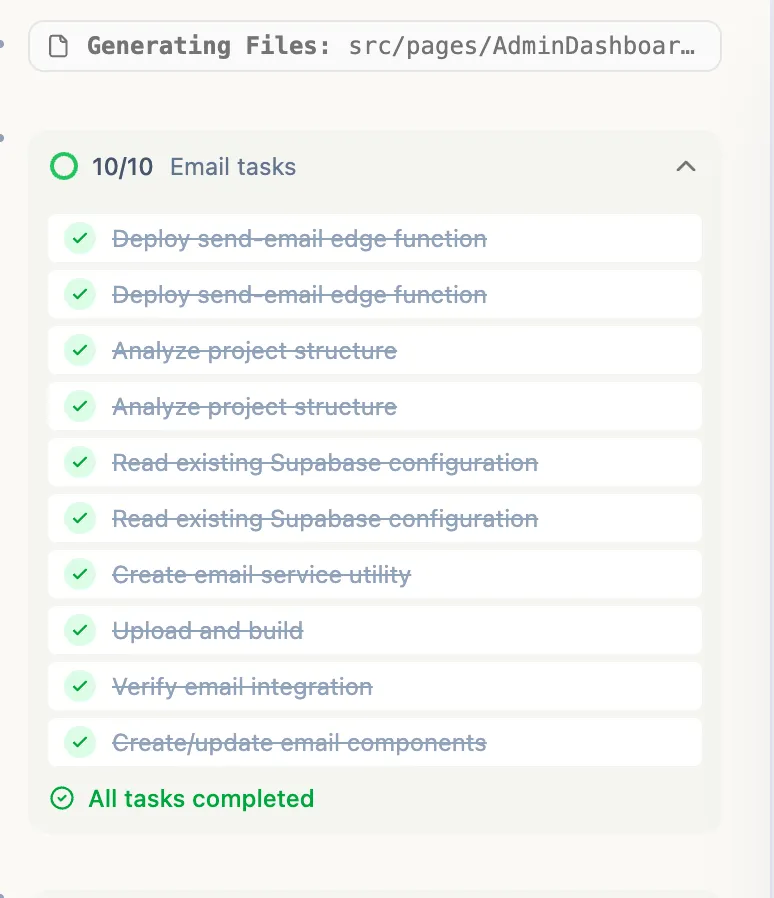
For example, when integrating email, you will see tasks like:
- ✅ Deploy send-email edge function
- ✅ Analyze project structure
- ✅ Read existing Supabase configuration
- ✅ Create email service utility
- ✅ Upload and build
- ✅ Verify email integration
- ✅ Create/update email components
All Tasks Completed
Section titled “All Tasks Completed”Once every task finishes, the panel shows “All tasks completed” in green - confirming the entire process ran successfully with no errors.
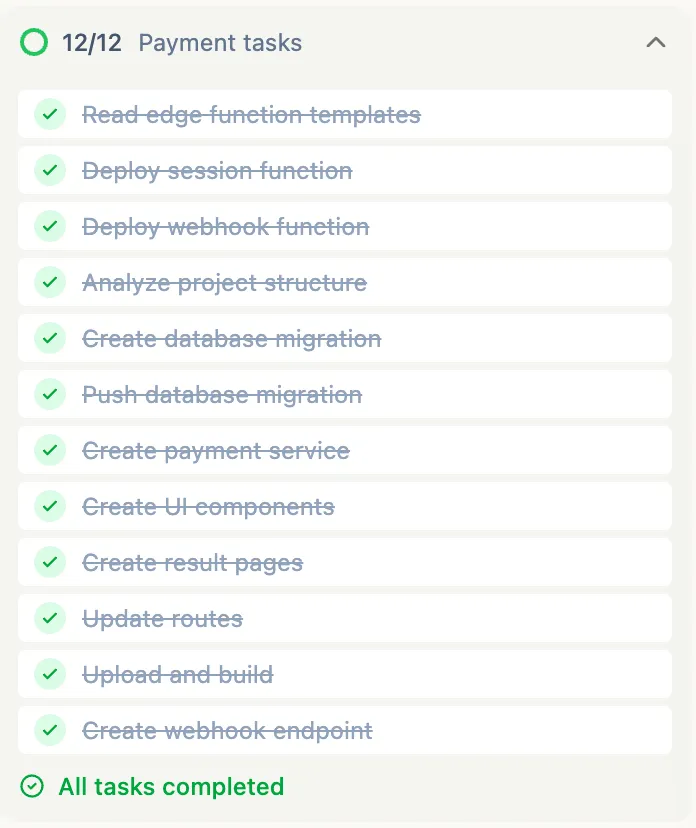
This is your signal that everything has been tested, verified, and is working correctly.
Automation Testing Window
Section titled “Automation Testing Window”For more complex builds - like payment integration - Codepup AI opens a dedicated Automation Testing panel that shows the full test run with a pass/fail count (e.g. 7/9 Clean).
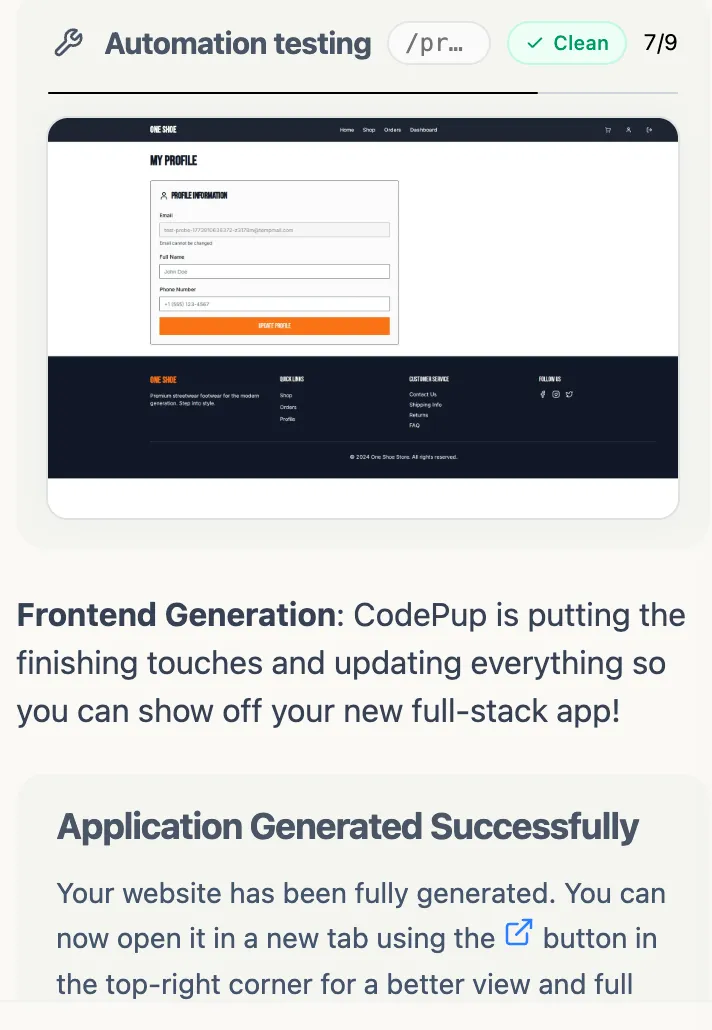
This panel shows:
- The current route or page being tested (e.g.
/profile,/checkout) - A pass count out of total tests (e.g.
7/9) - A Clean badge when tests pass without issues
- A live preview of the page being tested so you can see exactly what Codepup AI is verifying
What Gets Tested
Section titled “What Gets Tested”Automation testing covers every major part of your project depending on what you have built:
| Area | What Gets Checked |
|---|---|
| Pages & Routes | Every page loads without errors |
| Frontend UI | Components render correctly across the site |
| Authentication | Login, signup, and session flows work |
| Database | Data reads and writes to Supabase correctly |
| Payments | Stripe checkout and webhook flows process correctly |
| Emails | Resend integration sends emails as expected |
| Admin Dashboard | Dashboard data loads and displays correctly |
| Profile & Account | User profile pages update and save correctly |
After Testing Is Complete
Section titled “After Testing Is Complete”Once automation testing finishes successfully, Codepup AI shows a confirmation message in the chat:
Application Generated Successfully Your website has been fully generated. You can now open it in a new tab using the button in the top-right corner for a better view and full interaction.
Your project is live, tested, and ready to share.
Does It Run Every Time?
Section titled “Does It Run Every Time?”Yes. Automation testing runs automatically on every significant build or modification - including:
- New project generation
- Payment integration
- Email integration
- Authentication setup
- Any major feature addition via chat
You never need to trigger it manually. It is always running in the background as part of Codepup AI’s build process.